The most useful voice in a study routine often belongs to an answer that was never saved. It explained something clearly, at the right speed, with phrasing worth imitating, and then it stayed behind in a chat tab that got closed, buried under newer conversations, or deleted during a tidy-up. Anyone who learns with ChatGPT has felt that small loss. The answer still exists somewhere in an account history, perhaps, but the voice is effectively gone, and hearing it again means finding the thread, scrolling, and pressing play inside the page all over again.
Saving the audio as an MP3 file changes the relationship with that material. A file can be replayed on a phone with no connection, heard through earbuds on a bus, dropped into a lesson folder, and kept for years after the original conversation has been renamed, archived, or removed. This guide explains how to download ChatGPT voice as MP3 with AloudSaver, a Chrome extension built for exactly that job, and it explains the mechanism plainly so the common mistakes become easy to avoid.
Why a saved file beats listening inside the page
Listening inside the chat page works well the first time. The answer is fresh, the context is on screen, and the voice plays immediately. The weakness appears later, when listening needs to happen away from that page. A pronunciation drill belongs on a phone during a walk. A dictation exercise belongs on a laptop in a classroom with unreliable Wi-Fi. A narration draft for a video belongs in the project folder beside the script and the images, where it can be checked against the edit.
An MP3 file travels to all of those places without asking permission from a browser tab. It plays offline, it survives a dead battery on the machine where it was created, and it can be copied into playlists, flash drives, and cloud folders. For language learners, repetition is where the value sits. Hearing the same well-formed answer five times across a week builds an ear for rhythm and word stress in a way that one careful listen rarely does. A saved file makes that repetition effortless, because the audio is already waiting in the same place as every other study material.
There is also the matter of loss. Conversations get deleted, sometimes on purpose during a cleanup, sometimes by accident. Accounts accumulate hundreds of threads, and the one answer that mattered sinks under newer work. A file with a clear name, stored in a folder with a purpose, does not sink. People who treat their saved audio as a small library, rather than as digital leftovers, end up with a study asset that grows more useful every month.
How the capture actually works
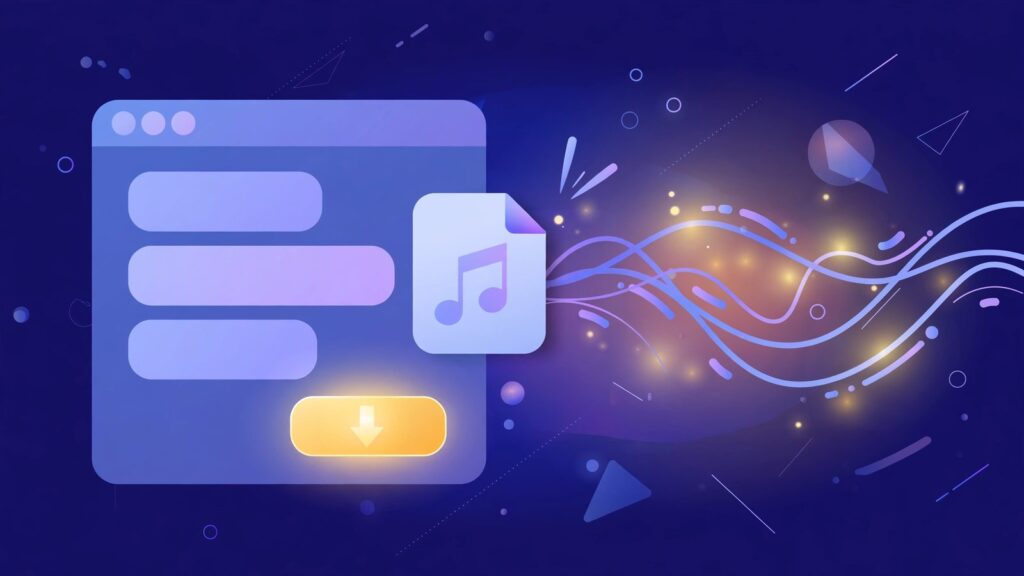
When the Listen button under a ChatGPT answer is pressed, the page generates an audio stream and plays it inside the tab. That stream is the voice itself, already rendered, already clean. AloudSaver listens for that stream and captures it as it plays. A small red badge on the extension counts each captured clip, so there is visible proof that the audio has been caught before anyone tries to save it. Opening the extension panel then turns the captured audio into an MP3 file with a single save action.
The detail that matters most is where the processing happens. Everything runs inside the browser. The audio is never uploaded to a server, never passed through a third-party service, and never leaves the machine during capture. That design keeps private conversations private, and it also keeps the workflow fast, because nothing waits on an upload queue.
Understanding the mechanism explains why screen recording is the wrong tool for this job. A screen recorder captures whatever the speakers happen to play, including notification pings, system sounds, and the hollow room tone of a laptop microphone path when recording is routed badly. It also ties the machine up for the full length of the playback, every single time. Capturing the stream directly skips all of that. The saved file holds the voice as the page produced it, and a two-minute answer takes moments to keep rather than two full minutes of supervised recording.
Step by step, from answer to file
The whole routine takes less than a minute once it becomes familiar, and it follows the same order every time.
- Install AloudSaver from the Chrome Web Store and sign in with a Google account.
- Open the ChatGPT conversation that holds the answer worth keeping.
- Press the Listen button under that answer and let the voice play.
- Watch the red badge on the extension and confirm it has counted the clip.
- Open the AloudSaver panel and save the captured audio as an MP3 file.
- Rename the file right away with the topic and the date, then move it into its proper folder.
That last step looks minor and saves more frustration than any other. A downloads folder full of identical-looking audio files teaches a hard lesson about naming, usually at the exact moment a specific lesson is needed quickly.
Mistakes that quietly cost people their audio
Most failures with this workflow come from a handful of habits, and every one of them is easy to fix once it has a name.
- Saving before listening. The capture begins when the voice plays, so pressing save before pressing Listen means there is nothing captured yet. The badge count is the check. If the badge shows nothing, the stream has not been caught.
- Reaching for a screen recorder. Recording the screen to keep a voice adds noise, eats time, and produces a heavier file with worse sound. The stream capture exists precisely so that detour becomes unnecessary.
- Keeping the default file names. A folder of files named by date codes and numbers might as well be empty when a specific answer is needed. Topic, purpose, and date in the name turn a pile of audio into a searchable library.
- Leaving good answers in dying chats. Threads that hold valuable spoken answers get deleted during cleanups all the time. Saving the audio on the day it proves useful takes seconds and removes that risk entirely.
- Listening once and moving on. A saved voice earns its keep through repetition. One hearing informs, while five hearings across a week train the ear and the tongue. Files that never get replayed deliver a fraction of their value.
A voice that has been saved can be returned to for years. A voice left inside a chat tab lasts only as long as the tab does.
Free and Pro, in plain terms
The free tier covers the everyday habit comfortably, with five downloads each day. That rhythm suits most learners, since a focused study session rarely needs more than a few new clips, and yesterday’s files remain available for unlimited replay. Signing in with Google keeps the count and the plan attached to the account rather than to one machine.
Pro removes the daily ceiling. It costs $5 a month, $24 for six months, or $39 a year, and it adds the feature heavy users ask for first, the ability to save a whole conversation as one ZIP file holding every answer’s audio together. Teachers building a week of listening material and creators drafting narration for a series of videos tend to feel the difference immediately. The extension interface speaks five languages, and the same account works across both ChatGPT and Gemini, since AloudSaver captures the read aloud voice on either platform.
Frequently asked questions
Does AloudSaver work with Gemini as well as ChatGPT?
Yes. The same capture flow applies on both platforms. Press Listen on an answer, let the badge count the clip, then save from the panel. One account and one plan cover both.
Where does the audio go while it is being captured?
Nowhere outside the browser. Capture and conversion happen locally on the machine, and the audio is never uploaded to a server. The finished MP3 lands in the downloads folder like any other file saved from the web.
What happens after the five free downloads run out?
Saving pauses until the next day, when the free allowance resets. Files already saved keep working without any limit, since they are ordinary MP3 files owned outright. Pro removes the daily cap entirely for anyone whose routine outgrows five clips a day.
Can a whole conversation be saved at once?
Yes, on the Pro plan. A full conversation can be saved as a single ZIP file containing the audio for its answers, which keeps long lessons and interview-style exchanges together in one tidy package instead of a scatter of separate downloads.
The practical move is small and worth doing today. Pick one answer that earned a second listen this week, press Listen, save the MP3, give it a name that will still make sense in six months, and file it where study materials live. That single file is the start of a library, and libraries built one good answer at a time have a way of becoming the most-used folder on the machine.